Retrieving and Submitting the Homework
Homework is distributed and collected through nbgrader on the course JupyterHub. Use the steps below to fetch new assignments and submit your work.
Retrieving assignments on JupyterHub
Log in to the course JupyterHub:
https://dsga-1016-spring.rcnyu.org/In the JupyterLab interface, go to Nbgrader in the menu bar and select Assignment List.
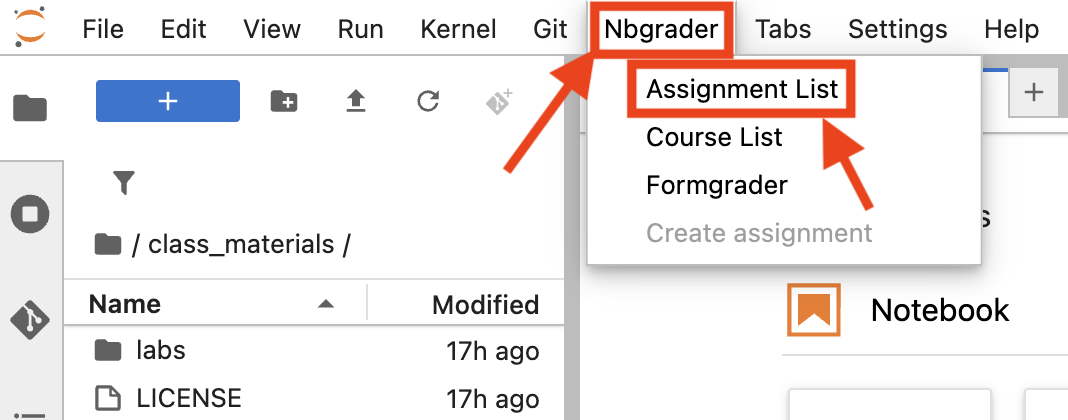
In the Assignment List you can Fetch new assignments and Submit completed ones. Use Fetch to download the latest homework when it is released.
Do Not Modify the Notebook Structure (important)
Our grading system relies on cell IDs to match your answers to the rubric. To avoid grading errors:
- Do not delete, reorder, or add cells to the notebook.
- Do not duplicate cells, even empty ones—duplicated cell IDs will cause submission failures.
- Only edit the content within cells marked for your responses.
- If you wish to work offline, you can download the jupyter notebooks to your computer, work on them there, and then paste your code and answers back into the jupyterhub cells for submission (being careful not to add or remove any cells).
Kernel (important)
When you open a homework notebook on the NYU JupyterHub, set the correct kernel so all required packages are available:
- Open the notebook.
- Go to Kernel in the menu bar → Change Kernel.
- Choose Python [conda env:CCM2026].
Confirm that the kernel shown in the top-right of the notebook is Python [conda env:CCM2026] before running cells.
Validating and Submitting Your Homework
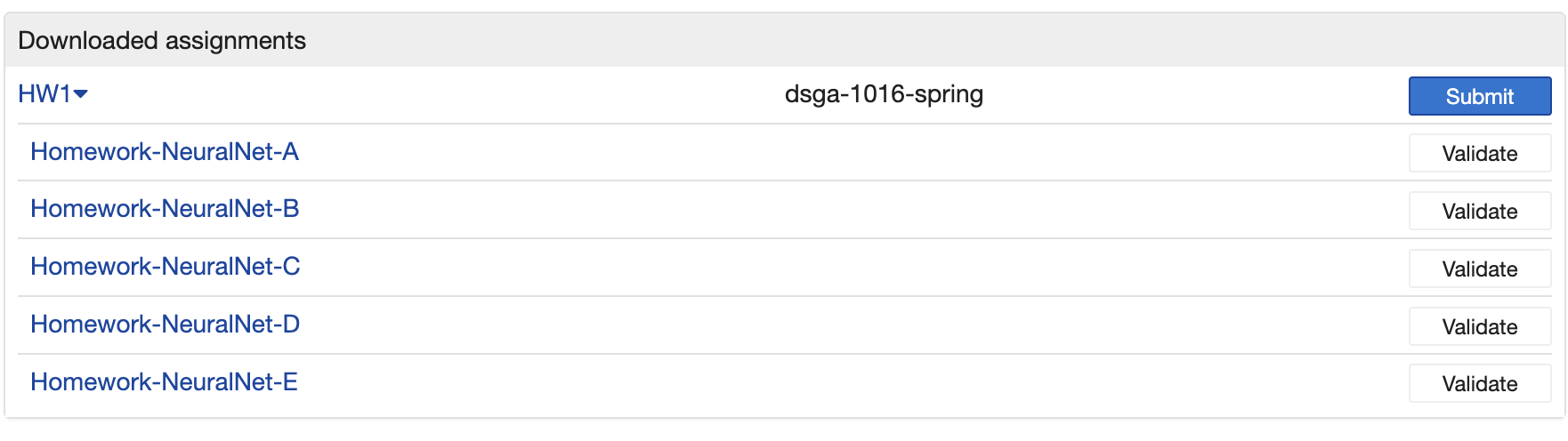
You can use the Validate button next to each notebook, but note that this only checks for empty short-answer cells, and does not confirm that your answers are correct.
To submit, click Submit for the assignment. Before submitting, save your notebook and run all cells from the top to ensure outputs are current. You can still view and edit your local copy after submitting.
- Multiple submissions: You may submit as many times as you like. Only the most recent submission will be graded.
- Late submissions: Submissions after the deadline but close to it will receive a penalty. Very late submissions will not be graded at all and so will receive a score of zero.
After submitting, verify the submission timestamp in the "Submitted assignments" section to confirm it was received.
Fetching Feedback
Once the assignment is submitted, a Fetch Feedback button will appear next to your submission. This button will not work until the grading team has finished grading the assignment.